Helixor Code Menu Bar Tray
The tray is a lightweight macOS menu-bar appliance for the local Helixor Code companion. It is engineered to give instantaneous operational status: is the companion running, is an index actively compiling, is MCP reachable, and how to quickly launch the Local Desk.
What The Tray Monitors
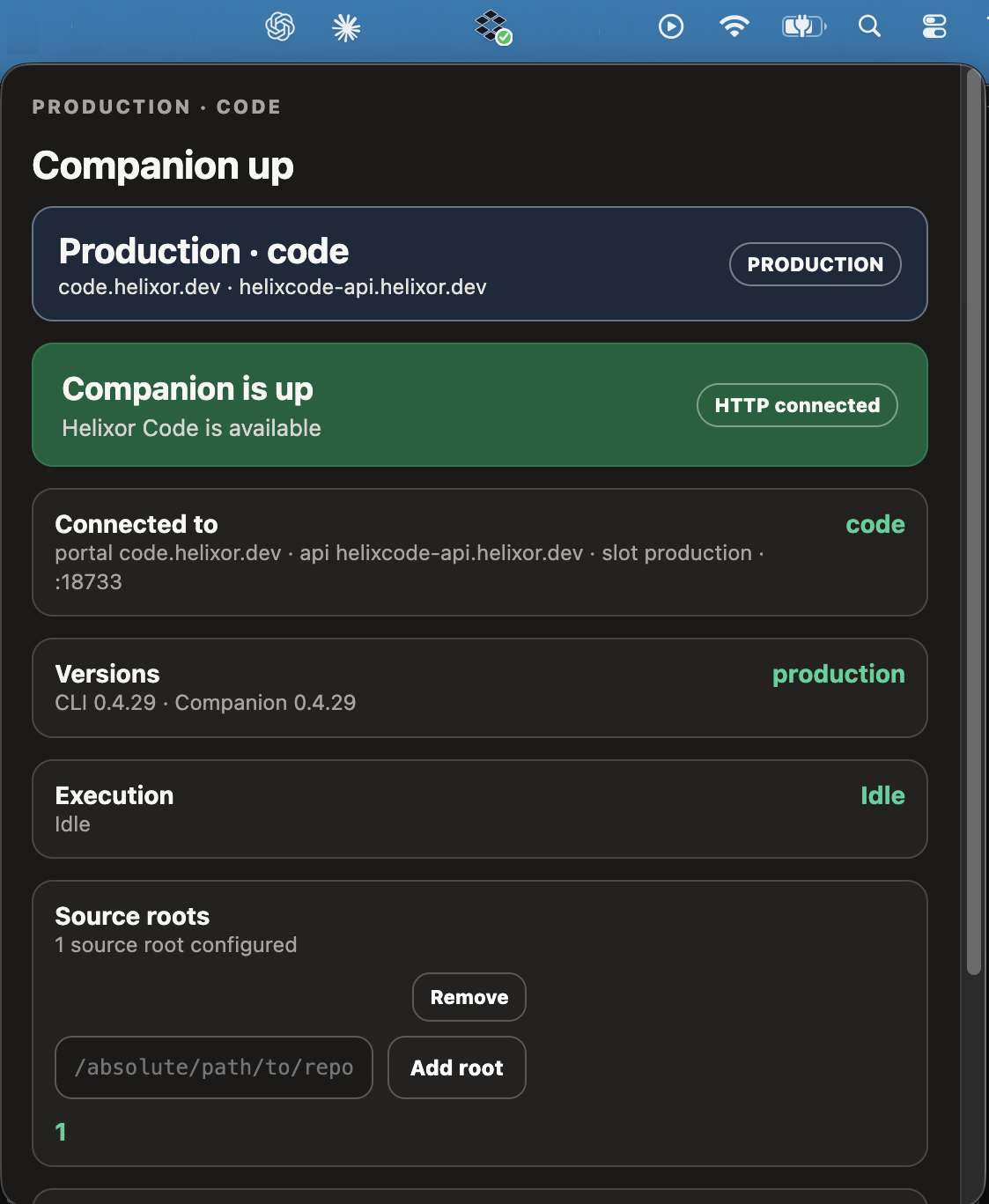
Clicking the menu-bar tray icon displays the companion's real-time operational status:
- Companion Health: Real-time status of the local process on port
18733(Production slot). - HTTP Connected: Direct confirmation that the companion daemon is reachable and responding.
- Execution State: Whether the companion is idle, serving agent queries, or actively indexing files.
- Version Alignment: Confirms CLI and companion version parity (e.g.
CLI 0.4.29 · Companion 0.4.29). - Source Root Management: Quick visibility into registered code roots with quick-add and remove controls.
- Connected Hub: Remote hub identity (e.g.
code.helixor.dev) and connection mode.
Starting & Managing The Tray
The tray normally launches automatically when running helixor up:
helixor upStart runtime in headless mode without the menu-bar tray:
helixor up --no-trayRequire the tray to launch and fail if macOS desktop access is unavailable:
helixor up --require-trayConnect to an already running tray instance without relaunching:
helixor up --reuse-trayStatus States
| Indicator | Meaning | Recommended Action |
|---|---|---|
| Idle (Green Dot) | Companion is healthy and listening for agent MCP calls. | Ready for use with Claude Code or Codex. |
| Active (Cyan Pulse) | Companion is parsing source files or processing an agent query. | Normal operation during active development. |
| Warning (Amber) | Stale configuration, index root mismatch, or hub unreachable. | Run helixor doctor in your terminal. |
| Offline (Red / Grey) | Companion process has stopped or port is blocked. | Run helixor up or helixor repair. |
Troubleshooting
If the tray indicates that the companion is down while your terminal shows processes running:
- Verify port
18733is not occupied by another process:lsof -i :18733. - Check companion status with
helixor status. - Reconcile registered slots and permissions:
helixor repair.